【Python】ラジオボタンを使った処理の制御【Tkinter】
ラジオボタンを使った処理の制御
Tkinterでラジオボタンを使った処理の制御をする
値を取得する
ウィジェット変数
ウィジェット変数とは
- ウィジェットの状態を制御するために使用されるオブジェクト
- ウィジェットが表示される際に、ウィジェット変数に格納された値がウィジェットに反映される
- ユーザーがウィジェットを操作した場合、その変更がウィジェット変数にも反映される
よく使われるウィジェット変数
- StringVar:文字列を保持
- IntVar:整数を保持
- DoubleVar:浮動小数点を保持
- BooleanVar:真偽値を保持
選択したラジオボタンから設定した値を取得する
import tkinter as tk

# ====================
# 値を取得する関数
# ====================
def get_selected_value() -> None:
    selected_value = radio_var.get()
    print(f'取得値:{selected_value}')

# --------------------
# GUIの設定
# --------------------
# 基本設定
app = tk.Tk()
app.title('ラジオボタンの設定値を取得')
app.geometry('350x200')

# --------------------
# ラジオボタン
# --------------------
# ラジオボタンの値を保持する変数と初期値の設定
radio_var = tk.StringVar(value='a')

# リスト形式でラジオボタンのオプションを作成する
options = [
    ('設定値:a', 'a'),
    ('設定値:b', 'b'),
    ('設定値:c', 'c'),
]

# リストを使ってラジオボタンを連続生成する
for text, value in options:
    rb = tk.Radiobutton(app, text=text, value=value, variable=radio_var)
    rb.pack(anchor='center', padx=20, pady=5)

# --------------------
# ボタン
# --------------------
# 関数を実行するボタン
btn = tk.Button(app, text='値を取得する', command=get_selected_value)
btn.pack(pady=15)

# ====================
# アプリの実行
# ====================
app.mainloop()
起動画面
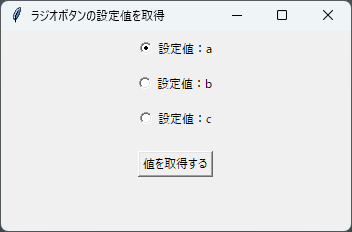
任意のラジオボタンを選択して値を取得する
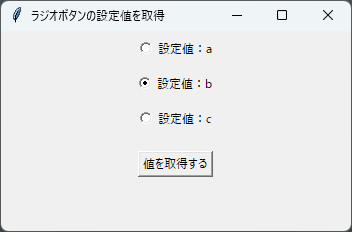
実行結果
取得値:b
CustomTkinter版
import customtkinter as ctk

# ====================
# 値を取得する関数
# ====================
def get_selected_value() -> None:
    selected_value = radio_var.get()
    print(f'取得値:{selected_value}')

# --------------------
# GUIの設定
# --------------------
# 基本設定
app = ctk.CTk()
app.title('ラジオボタンの設定値を取得')
app.geometry('350x200')

# --------------------
# ラジオボタン
# --------------------
# ラジオボタンの値を保持する変数と初期値の設定
radio_var = ctk.StringVar(value='a')

# リスト形式でラジオボタンのオプションを作成する
options = [
    ('設定値:a', 'a'),
    ('設定値:b', 'b'),
    ('設定値:c', 'c'),
]

# リストを使ってラジオボタンを連続生成する
for text, value in options:
    rb = ctk.CTkRadioButton(app, text=text, value=value, variable=radio_var)
    rb.pack(anchor='center', padx=20, pady=5)

# --------------------
# ボタン
# --------------------
# 関数を実行するボタン
btn = ctk.CTkButton(app, text='値を取得する', command=get_selected_value)
btn.pack(pady=15)

# ====================
# アプリの実行
# ====================
app.mainloop()
起動画面
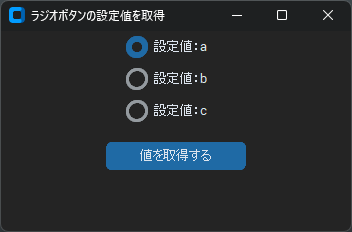
任意のラジオボタンを選択して値を取得する
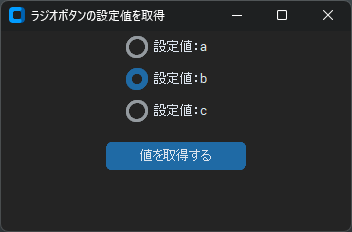
実行結果
取得値:b
選択状態で処理を分岐させる
ラジオボタンに設定した数値で処理を分岐させる
import tkinter as tk

# ===================================
# 値を取得して条件判断を実行する関数
# ===================================
def get_selected_value() -> None:
    selected_value = radio_var.get()
    if selected_value == 1:
        print('設定値:1 が選択されました')
    elif selected_value >= 2:
        print('2以上の設定値が選択されました')
    else:
        print('未選択です')

# --------------------
# GUIの設定
# --------------------
# 基本設定
app = tk.Tk()
app.title('ラジオボタンの選択による条件分岐')
app.geometry('350x200')

# --------------------
# ラジオボタン
# --------------------
# ラジオボタンの値を保持する変数と初期値の設定
# 処理の違いをわかりやすくするため設定値にない 0 を設定する
radio_var = tk.IntVar(value=0)

# リスト形式でラジオボタンのオプションを作成する
options = [
    ('設定値:1', 1),
    ('設定値:2', 2),
    ('設定値:3', 3),
]

# リストを使ってラジオボタンを連続生成する
for text, value in options:
    rb = tk.Radiobutton(app, text=text, value=value, variable=radio_var)
    rb.pack(anchor='center', padx=20, pady=5)

# --------------------
# ボタン
# --------------------
# 関数を実行するボタン
btn = tk.Button(app, text='処理を実行する', command=get_selected_value)
btn.pack(pady=15)

# ====================
# アプリの実行
# ====================
app.mainloop()
起動画面
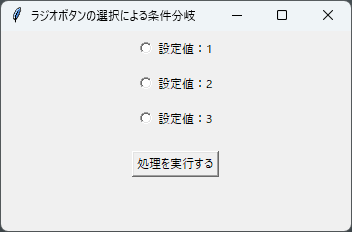
起動直後に処理を実行した結果
未選択です
任意のラジオボタンを選択して処理を実行する
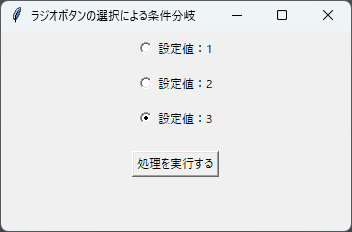
実行結果
2以上の設定値が選択されました
CustomTkinter版
import customtkinter as ctk

# ===================================
# 値を取得して条件判断を実行する関数
# ===================================
def get_selected_value() -> None:
    selected_value = radio_var.get()
    if selected_value == 1:
        print('設定値:1 が選択されました')
    elif selected_value >= 2:
        print('2以上の設定値が選択されました')
    else:
        print('未選択です')

# --------------------
# GUIの設定
# --------------------
# 基本設定
app = ctk.CTk()
app.title('ラジオボタンの選択による条件分岐')
app.geometry('350x220')

# --------------------
# ラジオボタン
# --------------------
# ラジオボタンの値を保持する変数と初期値の設定
# 処理の違いをわかりやすくするため設定値にない 0 を設定する
radio_var = ctk.IntVar(value=0)

# リスト形式でラジオボタンのオプションを作成する
options = [
    ('設定値:1', 1),
    ('設定値:2', 2),
    ('設定値:3', 3),
]

# リストを使ってラジオボタンを連続生成する
for text, value in options:
    rb = ctk.CTkRadioButton(app, text=text, variable=radio_var, value=value)
    rb.pack(anchor='center', padx=20, pady=5)

# --------------------
# ボタン
# --------------------
# 関数を実行するボタン
btn = ctk.CTkButton(app, text='処理を実行する', command=get_selected_value)
btn.pack(pady=15)

# ====================
# アプリの実行
# ====================
app.mainloop()
起動画面
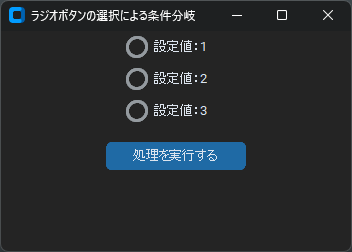
起動直後に処理を実行した結果
未選択です
任意のラジオボタンを選択して処理を実行する
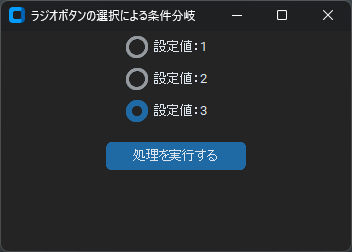
実行結果
2以上の設定値が選択されました
ラジオボタンに設定した文字列で処理を分岐させる
import tkinter as tk

# 処理内容の対応表
HANDLERS: dict[str, str] = {
    'opt1': 'ラジオボタン1が選択されました',
    'opt2': 'ラジオボタン2が選択されました',
    'opt3': 'ラジオボタン3が選択されました',
}

DEFAULT_MESSAGE = '未定義の選択肢です'

# ========================================
# 値を取得して対応する文字列を表示する関数
# ========================================
def get_selected_value() -> None:
    selected_value = radio_var.get()
    print(HANDLERS.get(selected_value, DEFAULT_MESSAGE))

# --------------------
# GUIの設定
# --------------------
# 基本設定
app = tk.Tk()
app.title('ラジオボタンの選択による条件分岐')
app.geometry('350x220')

# --------------------
# ラジオボタン
# --------------------
# ラジオボタンの値を保持する変数と初期値の設定
radio_var = tk.StringVar(value='opt1')

# ラジオボタンの生成
options = [
    ('ラジオボタン1', 'opt1'),
    ('ラジオボタン2', 'opt2'),
    ('ラジオボタン3', 'opt3'),
]

# リストを使ってラジオボタンを連続生成する
for text, value in options:
    rb = tk.Radiobutton(app, text=text, variable=radio_var, value=value)
    rb.pack(anchor='center', padx=20, pady=5)

# --------------------
# ボタン
# --------------------
# 関数を実行するボタン
btn = tk.Button(app, text='処理を実行する', command=get_selected_value)
btn.pack(pady=15)

# ====================
# アプリの実行
# ====================
app.mainloop()
起動画面
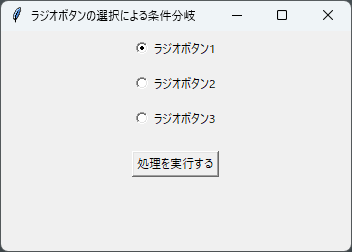
任意のラジオボタンを選択して処理を実行する
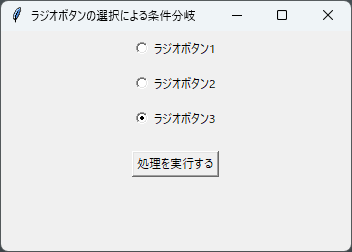
処理実行結果
ラジオボタン3が選択されました
CustomTkinter版
import customtkinter as ctk

# 処理内容の対応表
HANDLERS: dict[str, str] = {
    'opt1': 'ラジオボタン1が選択されました',
    'opt2': 'ラジオボタン2が選択されました',
    'opt3': 'ラジオボタン3が選択されました',
}

DEFAULT_MESSAGE = '未定義の選択肢です'

# ========================================
# 値を取得して対応する文字列を表示する関数
# ========================================
def get_selected_value() -> None:
    selected_value = radio_var.get()
    print(HANDLERS.get(selected_value, DEFAULT_MESSAGE))

# --------------------
# GUIの設定
# --------------------
# 基本設定
app = ctk.CTk()
app.title('ラジオボタンの選択による条件分岐')
app.geometry('350x220')

# --------------------
# ラジオボタン
# --------------------
# ラジオボタンの値を保持する変数と初期値の設定
radio_var = ctk.StringVar(value='opt1')

# リスト形式でラジオボタンのオプションを作成する
options = [
    ('ラジオボタン1', 'opt1'),
    ('ラジオボタン2', 'opt2'),
    ('ラジオボタン3', 'opt3'),
]

# リストを使ってラジオボタンを連続生成する
for text, value in options:
    rb = ctk.CTkRadioButton(app, text=text, variable=radio_var, value=value)
    rb.pack(anchor='center', padx=20, pady=5)

# --------------------
# ボタン
# --------------------
# 関数を実行するボタン
btn = ctk.CTkButton(app, text='処理を実行する', command=get_selected_value)
btn.pack(pady=15)

# ====================
# アプリの実行
# ====================
app.mainloop()
起動画面
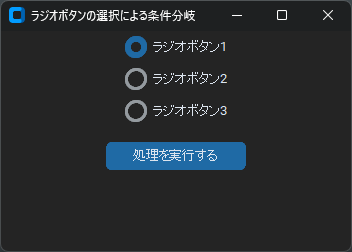
任意のラジオボタンを選択して処理を実行する
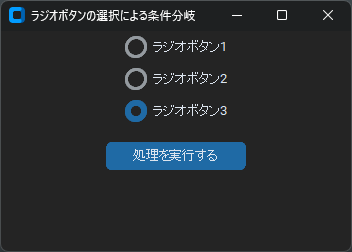
処理実行結果
ラジオボタン3が選択されました